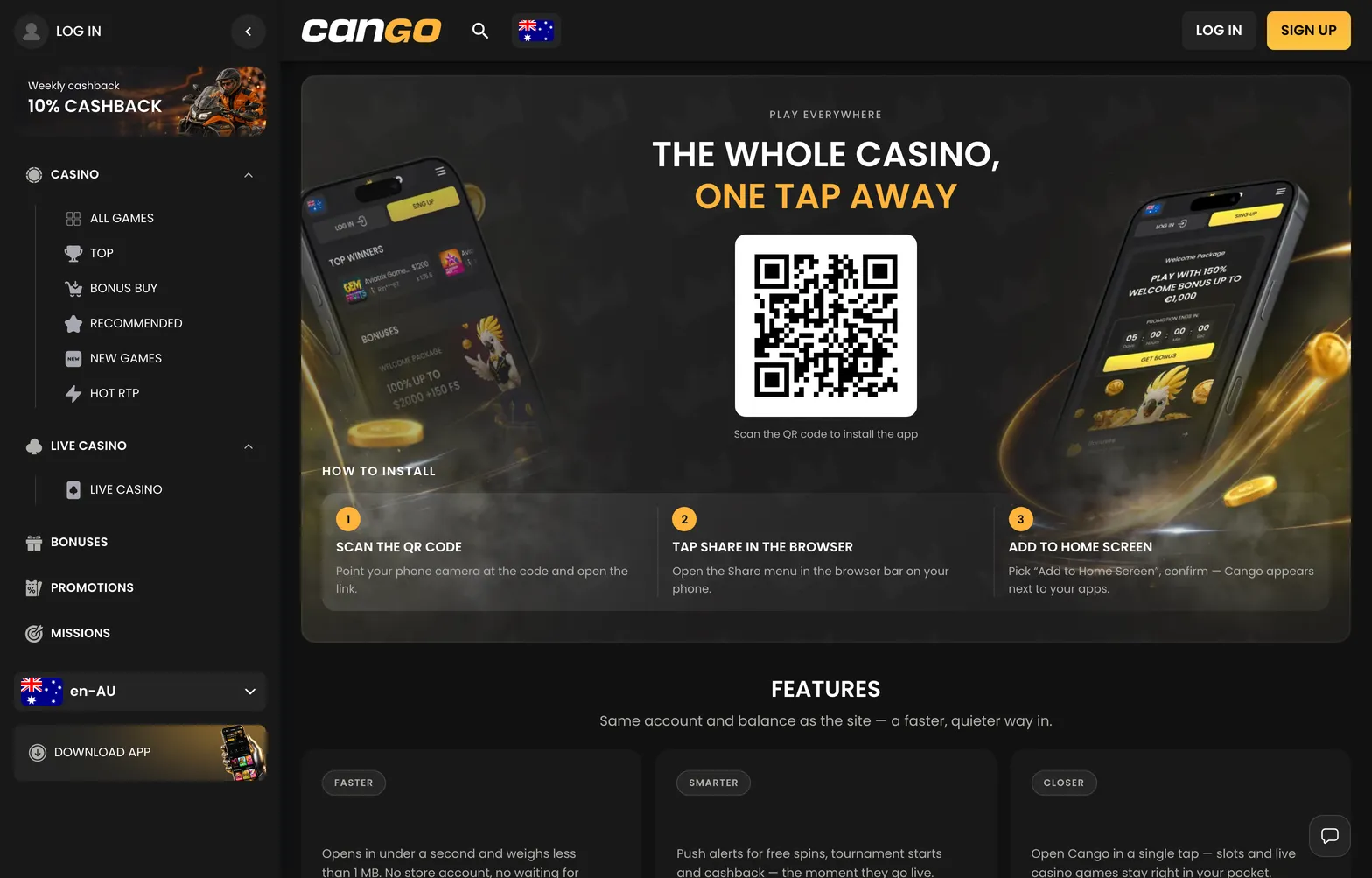

Settling onto the couch after work with your mobile in hand is the easiest way to play a few rounds of live roulette or spin some pokies, and the cango iphone app sets that up in about thirty seconds. You will not find a native download in the Apple App Store because the casino runs as a Progressive Web App through Safari. That puts a clean icon right on your home screen, opens in full screen without browser bars, and gives you direct access to live dealer tables, the A$ cashier, and your cashout controls.
Cango iPhone app: the steps overview
Setting up the cango app on an Apple handset does not require Apple ID passwords or waiting for a heavy download over your home Wi-Fi. Because it is a Progressive Web App, the whole setup happens inside the Safari browser that came with your phone. You open the lobby, use the built-in system menu, and pin the shortcut directly to your layout. Once it is there, tapping the icon opens the lobby in a dedicated window without the bottom address bar getting in the way when you are trying to place a A$5 chip on Lightning Roulette before the timer runs out.
| Step | What you tap | What you see |
|---|---|---|
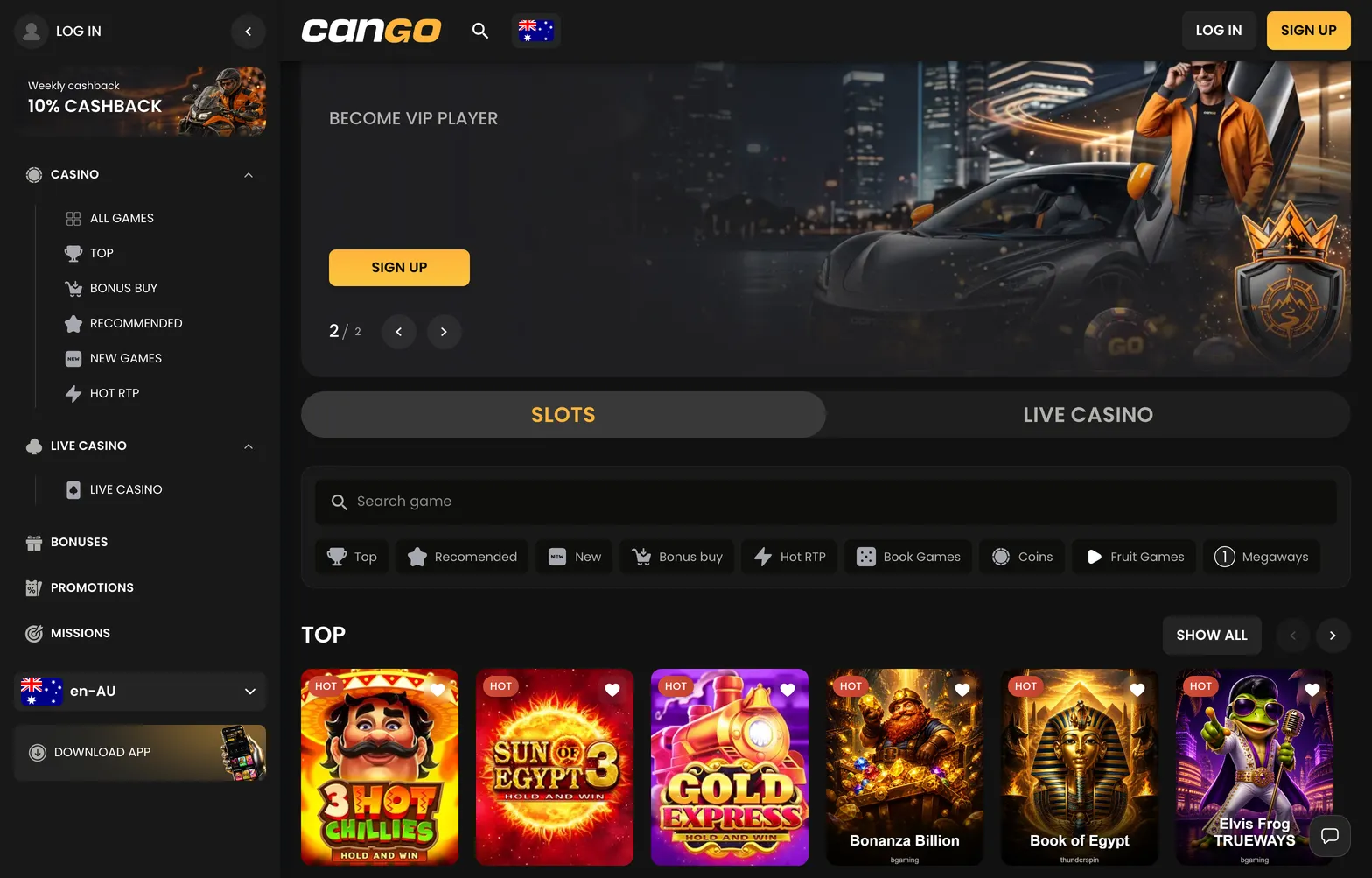
| 1. Open Safari | The Safari compass icon on your iPhone | The casino lobby loads with the Slots and Live Casino switch at the top |
| 2. Open Share menu | The Share icon (square with an upward arrow) at the bottom centre | The iOS system sheet slides up over the lower half of your screen |
| 3. Pick shortcut option | Add to Home Screen in the vertical list of actions | A preview card appears showing the icon and the editable name field |
| 4. Confirm placement | The blue Add button in the top right corner | The sheet closes and the new icon sits on your home screen grid |
| 5. Launch and sign in | The new casino icon on your home screen | The PWA opens in full screen ready for your email or Google sign-in |